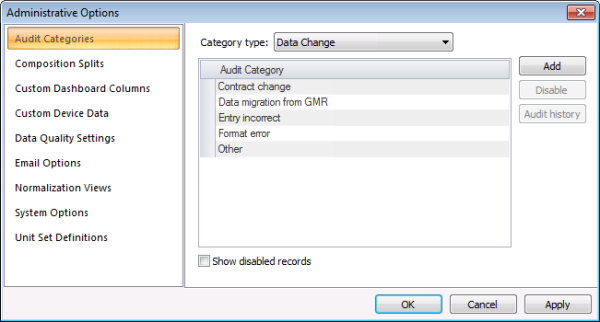
In many places within the system, an internal audit record is attached to create a detailed audit trail when you make a change. Use the Audit Categories page to manage a list of available audit category options, per audit type, in order to help you track and understand changes occurring in your system. You can use the default categories provided, or edit or add category names to create customized categories. When you save the changes, the categories will appear in the Audit category selectors throughout the system.
You can also access audit history information from this page. See Viewing Audit History for more information.
You must have proper security authorization to configure audit categories. See FMS Security (and ACCESS security event) for information about configuring security access to administrative options.
See Auditing in CygNet Measurement for more information about internal auditing in the measurement system.
On the Admin menu, click Options, then Audit Categories to access the audit categories configured for your system.
The properties for the Audit Categories page of the Administrative Options dialog box are described below.
|
Parameter |
Description |
|---|---|
|
Category type |
Select the desired category type from the drop-down menu to view its audit categories. Default audit categories are provided for each category type. You can also create customized categories within any category type. Either select and edit an existing audit category name, or click Add to insert a new category listing and then type in the new audit category name desired. Options are as follows.
|
| [Audit Categories list] | |
|
Audit Category |
A list of all default and configured audit categories for the selected category type in the FMS system. |
|
Enabled |
When Show disabled records is selected, specifies if the selected audit category is enabled. |
|
Add |
Click Add to configure a new audit category. Names must be unique within a category type. |
|
Disable Enable |
Click Disable/Enable to disable/enable a selected audit category. To view all audit categories, select the Show disabled records check box. Note: Disabled records are not removed from the system, only from the default view. When Show disabled records is selected, all audit categories will be displayed, and the Enabled column will indicate each audit category's status. |
|
Audit history |
Click Audit history to view the Audit History for the selected audit category. See Viewing Audit History for more information. |
|
Show disabled records |
Click this check box to also show disabled audit categories in the list. |

Audit category types, and the default audit categories provided for each, include the following.
|
|
|

